
Managing projects and tracking tasks across a team can quickly become complicated. Emails, spreadsheets, and disconnected tools often lead to missed deadlines, confusion about responsibilities, and poor visibility into project progress.
Microsoft Teams provides a powerful solution for organizing work by combining collaboration, communication, and task tracking in a single platform. One of the most useful tools for this is Microsoft Planner, which integrates directly into Teams.
Using Planner inside Teams allows organizations to create structured task boards, assign responsibilities, track progress, and keep project discussions connected to the work itself.
In this guide, we’ll explain how Microsoft Teams task management works and how businesses can use Microsoft Planner to simplify project coordination and team collaboration.
What Is Microsoft Teams Task Management?
Microsoft Teams task management refers to the process of organizing, assigning, and tracking work directly within Microsoft Teams.
Teams integrates with several Microsoft 365 tools designed to help organizations manage tasks and projects, including:
-
Microsoft Planner
-
Tasks by Planner and To Do
-
Microsoft To Do
-
Microsoft Project
-
Microsoft Lists
Among these options, Microsoft Planner is one of the most commonly used tools for team task management.
Planner provides a visual project management board that allows teams to organize work into buckets, assign tasks to team members, set deadlines, and track progress.
Because Planner integrates directly with Teams channels, task management becomes part of the daily collaboration workflow.
How Microsoft Planner Works in Microsoft Teams
Microsoft Planner integrates directly into Microsoft Teams as a tab inside a channel. Once added, it allows teams to manage tasks without leaving the Teams environment.
A typical workflow looks like this:
First, a team creates a new Planner board within a Teams channel.
Next, tasks are created and organized into categories called buckets, which represent phases of work or project stages.
Team members can then:
-
Assign tasks to specific individuals
-
Set due dates
-
Add checklists
-
Attach files
-
Include notes and comments
Because Planner is connected to Microsoft 365, users can also attach documents stored in SharePoint or OneDrive.
As tasks progress, they can be moved across the board, providing a clear visual representation of project status.
Benefits of Using Microsoft Teams for Task Management
Organizations use Microsoft Teams task management because it combines collaboration and project tracking in one place.
Instead of switching between multiple tools, teams can communicate, assign work, and track progress within the same platform.
Some of the key benefits include improved collaboration, increased visibility, and streamlined project coordination.
Centralized Collaboration
One of the biggest advantages of Microsoft Teams is that conversations, files, and tasks exist within the same workspace.
When tasks are connected to Teams channels, team members can discuss work directly alongside the tasks themselves.
This eliminates the need for long email threads and ensures that everyone involved in a project has access to the same information.
Clear Task Ownership
Microsoft Planner allows tasks to be assigned to specific team members.
This makes responsibilities clear and helps ensure accountability.
Each team member can also view their assigned tasks across multiple projects, making it easier to manage workloads and deadlines.
Visual Project Tracking
Planner uses a Kanban-style board, which provides a visual representation of tasks and project progress.
Tasks move between categories such as:
-
Not started
-
In progress
-
Completed
This approach makes it easy for teams to quickly see what work is pending and what tasks are already finished.
Integration with Microsoft 365
Another major advantage of Microsoft Teams task management is its integration with the broader Microsoft 365 ecosystem.
Planner tasks can connect with:
-
Outlook calendars
-
SharePoint document libraries
-
OneDrive files
-
Microsoft To Do personal tasks
This integration helps teams maintain a consistent workflow across all productivity tools.
How to Add Planner to Microsoft Teams
Setting up task management in Microsoft Teams with Planner is simple.
Follow these steps to add a Planner board to a Teams channel.
First, open the desired Microsoft Teams channel.
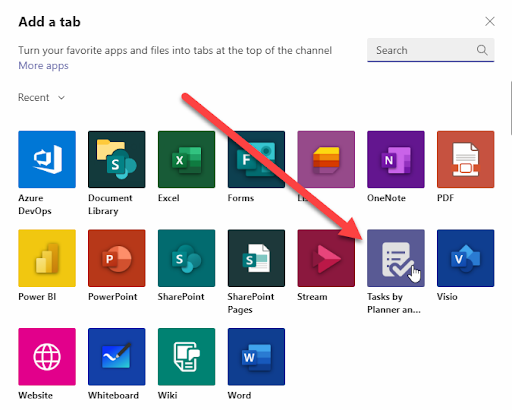
Next, select the plus (+) icon at the top of the channel to add a new tab.
Choose Tasks by Planner and To Do from the list of available apps.
You can then create a new Planner plan or select an existing one.
Once added, the Planner board becomes accessible directly inside the Teams channel, allowing all members of the team to create and manage tasks collaboratively.
Best Practices for Microsoft Teams Task Management
While Microsoft Planner is easy to use, following a few best practices can significantly improve project organization and productivity.
Organize Tasks with Buckets
Buckets help organize tasks into logical groups.
Common bucket structures include:
-
Project phases
-
Departments
-
Workstreams
-
Task priorities
Clear organization helps teams quickly locate and manage tasks.
Use Task Checklists
Planner allows tasks to include checklists.
These are useful for breaking larger tasks into smaller steps, which improves clarity and helps team members track progress more effectively.
Set Clear Due Dates
Deadlines help ensure projects stay on schedule.
Using due dates in Planner allows teams to monitor upcoming deadlines and prioritize tasks accordingly.
Keep Conversations in Teams
Instead of discussing tasks through email, teams should keep conversations within the Teams channel.
This ensures that discussions remain connected to the work being performed.
Microsoft Teams Task Management vs Traditional Project Tools
Many organizations previously relied on spreadsheets or standalone project management tools to track tasks.
While these methods can work, they often lack integration with communication tools.
Microsoft Teams task management provides several advantages over traditional approaches.
First, it integrates communication and project tracking in one environment.
Second, teams gain real-time visibility into task progress without manually updating spreadsheets.
Third, Planner boards provide visual project management that is easier to understand than static task lists.
For many organizations already using Microsoft 365, Teams and Planner provide a natural extension of their existing productivity tools.
When to Use Microsoft Planner vs Microsoft Project
Although Microsoft Planner works well for many teams, some organizations require more advanced project management features.
Microsoft Planner is best suited for:
-
Small to medium team projects
-
Task tracking
-
Collaborative project coordination
-
Agile or flexible workflows
Microsoft Project may be more appropriate for:
-
Complex project scheduling
-
Resource allocation
-
Detailed project timelines
-
Enterprise project management
Many organizations use both tools depending on the complexity of their projects.
Improving Productivity with Microsoft Teams Task Management
Effective task management is essential for keeping projects on track and ensuring teams remain aligned.
By combining Microsoft Teams with Microsoft Planner, organizations gain a powerful collaboration platform that simplifies project coordination.
Teams can create tasks, assign responsibilities, track progress, and communicate about work without leaving the Teams environment.
This integrated approach improves visibility, reduces confusion, and helps teams deliver projects more efficiently.
For businesses already using Microsoft 365, implementing Microsoft Teams task management with Planner is one of the easiest ways to improve productivity and streamline project workflows.
Learn how we can help you unleash your business’s true potential by downloading this free eBook today.